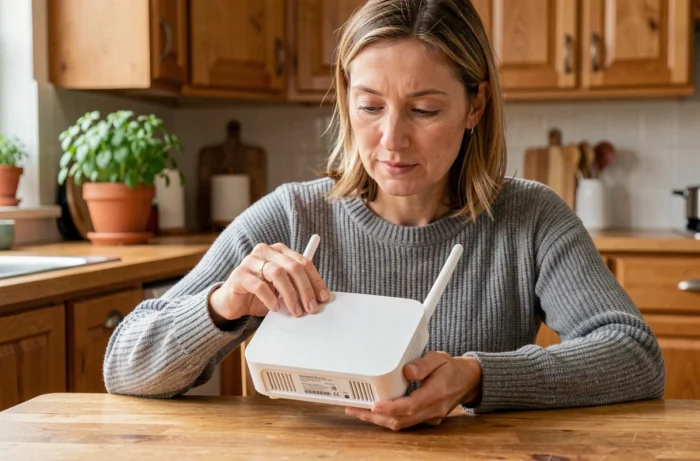
Finding the WiFi password for your Freebox can be done through at least three distinct methods, each with its access constraints and technical prerequisites. The Freebox OS interface, the Freebox Connect app, and the physical display on the box do not all provide the same level of flexibility. Comparing these methods allows you to choose the most suitable one depending on whether you are at home, outside, or have forgotten your admin credentials.
Freebox WiFi Password: Comparison of the Three Recovery Methods
| Method | Remote Access | Local Network Connection Required | Admin Password Required | Compatible Models |
|---|---|---|---|---|
| Freebox OS (mafreebox.freebox.fr) | No | Yes | Yes | All models |
| Freebox Connect App | Yes | No | No (Free account) | Pop, Ultra, Delta, Revolution |
| LCD Display / Touch Screen | No | No | No | Revolution, Delta, Ultra |
The major difference lies in the “remote access” column. Freebox OS requires being connected to the local network of the box. The Freebox Connect app, linked to the Free account, works from any external mobile or WiFi network. Freebox Connect allows you to retrieve the WiFi key without being at home, which covers a common use case: passing the password to someone who stayed at home while you are outside.
The physical display, on the other hand, does not require any credentials but requires being in front of the box. Its availability depends on the model: the Freebox Pop, for example, does not have a built-in screen on its Server unit.
For subscribers looking for a detailed guide by model, it is possible to access the Mix Design and Tech site which covers each Freebox with screenshots.
Retrieve the WiFi Key via Freebox OS: The Admin Password Trap
The most documented method involves opening a browser, typing mafreebox.freebox.fr in the address bar, and then navigating to the WiFi settings. The exact path goes through the “Freebox Settings” section, then “WiFi,” where the security key appears in plain text.
The blockage often occurs at the time of connecting to the interface. The admin password for Freebox OS is not the WiFi password. It is a distinct identifier, set during the first connection to the management interface. Many users have never configured it or have forgotten it.
Resetting the Freebox Admin Password
If the admin password is forgotten, the recovery procedure requires physical validation on the Freebox Server. Specifically, after clicking on “Forgot Password” in the Freebox OS interface, a press on the right arrow of the Server unit is required to authorize the creation of a new password.
This physical constraint is a security measure. It prevents any unauthorized remote reset. But it also means that if you are not in front of the box, Freebox OS becomes inaccessible until the admin password is restored.
- Open mafreebox.freebox.fr from a device connected to the local network of the Freebox
- Click on “Forgot Password” if the admin identifier is lost
- Physically validate on the Server unit (press right arrow) to unlock the procedure
- Once connected, navigate to Freebox Settings, then WiFi, to display the key in plain text
Freebox Connect App: Retrieve the WiFi Code Remotely
The Freebox Connect app, available on iOS and Android, connects to the subscriber’s Free account. Once authenticated, the app displays the WiFi network settings, including the security key, without requiring a connection to the local network.
This method is the only one that works outside the home. If a relative calls you to get the WiFi password while you are at the office, Freebox Connect provides the answer in seconds. Guides that limit themselves to Freebox OS or the box label miss this common scenario.
The app also allows you to change the WiFi key remotely. However, the change takes effect immediately: all devices connected to the network will be disconnected and will need to reconnect with the new password.
WPS Active on the Freebox: Connection Without a Password and Associated Risks
The WPS (WiFi Protected Setup) function, present on most Freebox models, allows a device to be connected to the WiFi network without entering the password. A press on the physical button of the box or activation in Freebox OS is sufficient.
As long as the “Allow WPS” option remains active, a device can join the network without knowing the WiFi key. This shortcut is convenient, but it reduces the very relevance of password protection. A visitor with physical access to the box can connect their device without your explicit consent.
Disabling WPS is done in the WiFi settings of Freebox OS. For subscribers who regularly receive visitors, the guest WiFi network offers a more controlled alternative: a temporary password, distinct from the main network, with the ability to revoke access from Freebox Connect.
Guest WiFi and Management of Connected Devices
Recent versions of Freebox OS (from version 4.11) improve the management of the guest network. An update notably fixes a bug that prevented the removal of certain devices connected to the guest WiFi from the “Network Devices” window. The guest network avoids sharing the key of the main network, which limits risks if a guest device is compromised.
Each method of recovering the Freebox WiFi password addresses a specific situation. The physical display helps when you are in front of the box without a computer. Freebox OS provides full access to network settings, provided you know the admin password. Freebox Connect covers the remote scenario that the other two do not handle. Keeping the app installed and configured on your phone remains the simplest precaution to never get stuck.