Retrieving an online Carrefour invoice assumes that the customer account, loyalty card, and order email point to the same profile. When this is not the case, the document simply does not appear in the history, and no “Download” button resolves the issue. We detail here the actual technical blockages and solutions for each channel.
Desynchronization of loyalty account, email, and Drive: identifying the blockage
The most common case, and the least documented, concerns the coexistence of two distinct Carrefour profiles linked to the same person. When the email address associated with the loyalty card differs from the one used to create the Drive account, Carrefour generates two separate profiles without warning. The invoice is then linked to the Drive profile, but the customer logs in with their loyalty credentials, where the history remains empty.
The verification is done in the customer area, under “My Account” then “Personal Information.” Compare the displayed email address with the one in the order confirmation email. If they do not match, you have found the source of the problem.
We recommend following the Carrefour online invoicing procedure which details the steps for reconciling accounts before any other manipulation.
Manually link the loyalty card to the correct account
A loyalty card not linked to the online account can be added manually. Simply enter the number printed on the back of the card (or scan its barcode via the Carrefour mobile app) in the “My Loyalty Card” section of the customer area. Once this linking is done, invoices associated with previous purchases may reappear within a few hours.
This delay is normal. The synchronization is not instantaneous, contrary to what most guides suggest. After a linking or account modification, allow for a propagation time before checking the history.
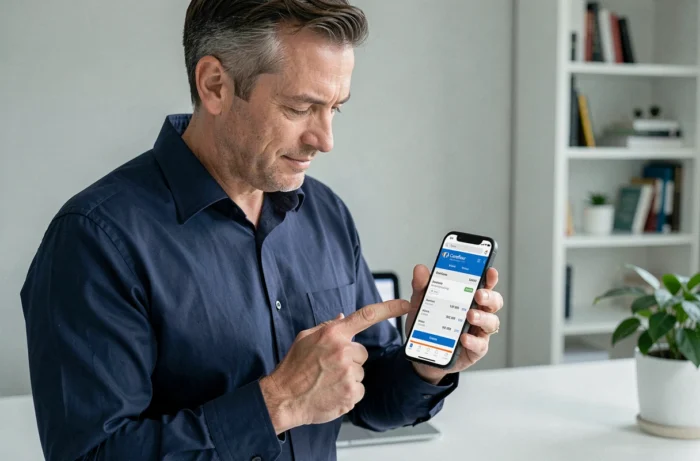
Carrefour Drive invoice: access from the customer area and mobile app
For standard Drive orders (without synchronization issues), the invoice is accessible from two entry points.
- On the carrefour.fr website, log into your customer area, go to “My Orders,” select the relevant order, and then click “Download Invoice” to obtain the PDF.
- On the Carrefour mobile app, the process is identical: “My Account” tab, then “Order History.” The document downloads directly to the phone in PDF format.
- If the download link does not appear despite a correctly configured account, keep the confirmation email containing the order number: customer service can regenerate the invoice from this reference.
The receipt sent by email after a Drive pickup is not an invoice in the accounting sense. It does not always include the VAT number or mandatory mentions. For professional use or an expense report, only the PDF downloaded from the customer area is valid.
Invoice for in-store purchases: the checkout service
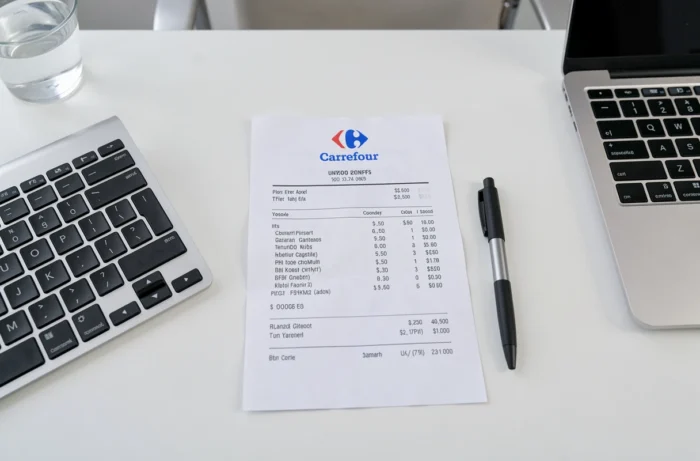
Purchases made directly in Carrefour stores (hypermarkets, Market, Express) do not automatically generate an online invoice. Some stores now offer an invoice generation service from the receipt, accessible at the store’s reception or via a dedicated terminal.
The loyalty card presented at checkout is the only link between the physical purchase and your customer area. Without scanning the card at the time of payment, there is no digital trace of the transaction in your account. The invoice will then need to be requested directly at the store’s reception, with the original receipt in hand.
Carrefour invoice and professional accounting: mandatory mentions and compliance
A professional who submits their Carrefour purchases for reimbursement must ensure that the retrieved document includes the required legal mentions: seller’s identity (company name, address, SIRET), date of sale, precise description of products, unit price excluding tax, VAT rate and amount, total amount including tax.
Invoices generated from the Drive customer area generally include these elements. However, standard receipts do not constitute valid invoices for accounting purposes, even if a VAT amount is listed. The distinction is legal, not optional.
Management and archiving of Carrefour invoices
For ongoing management, we recommend systematically downloading the PDF after each Drive order rather than relying on the permanent availability of online history. Carrefour does not guarantee unlimited archiving duration for invoices in the customer area.
Organize each invoice with the order number as the file name. In case of a tax audit or dispute, this organization allows you to find a proof of purchase in seconds without depending on the platform.
Contact Carrefour customer service for an untraceable invoice
When all account-side checks have been made without results, customer service remains the last resort. Prepare the following elements before the call or message:
- The order number (found in the confirmation email)
- The email address linked to the account used for the order
- The loyalty card number if you have one
- The date and approximate amount of the purchase
Customer service can regenerate an invoice from the order number, even if the link has expired or if the document has never been visible in the history. Without an order number, the search becomes much longer, hence the importance of systematically keeping confirmation emails.
The fastest channel remains the online contact form on carrefour.fr, under the “Help & Contact” section, selecting the category related to Drive orders. Responses generally arrive faster than by phone, where wait times vary depending on the time slots.
Retrieving a Carrefour invoice online relies less on navigating the site than on the consistency of data between the loyalty card, email address, and customer account. Check these three points first, and keep your confirmation emails: they remain the most reliable backup key when the customer area does not cooperate.